SaaS Landing Page
A complete, conversion-focused landing page for a B2B software product: hero, features, pricing, testimonials, FAQ and a final call to action.
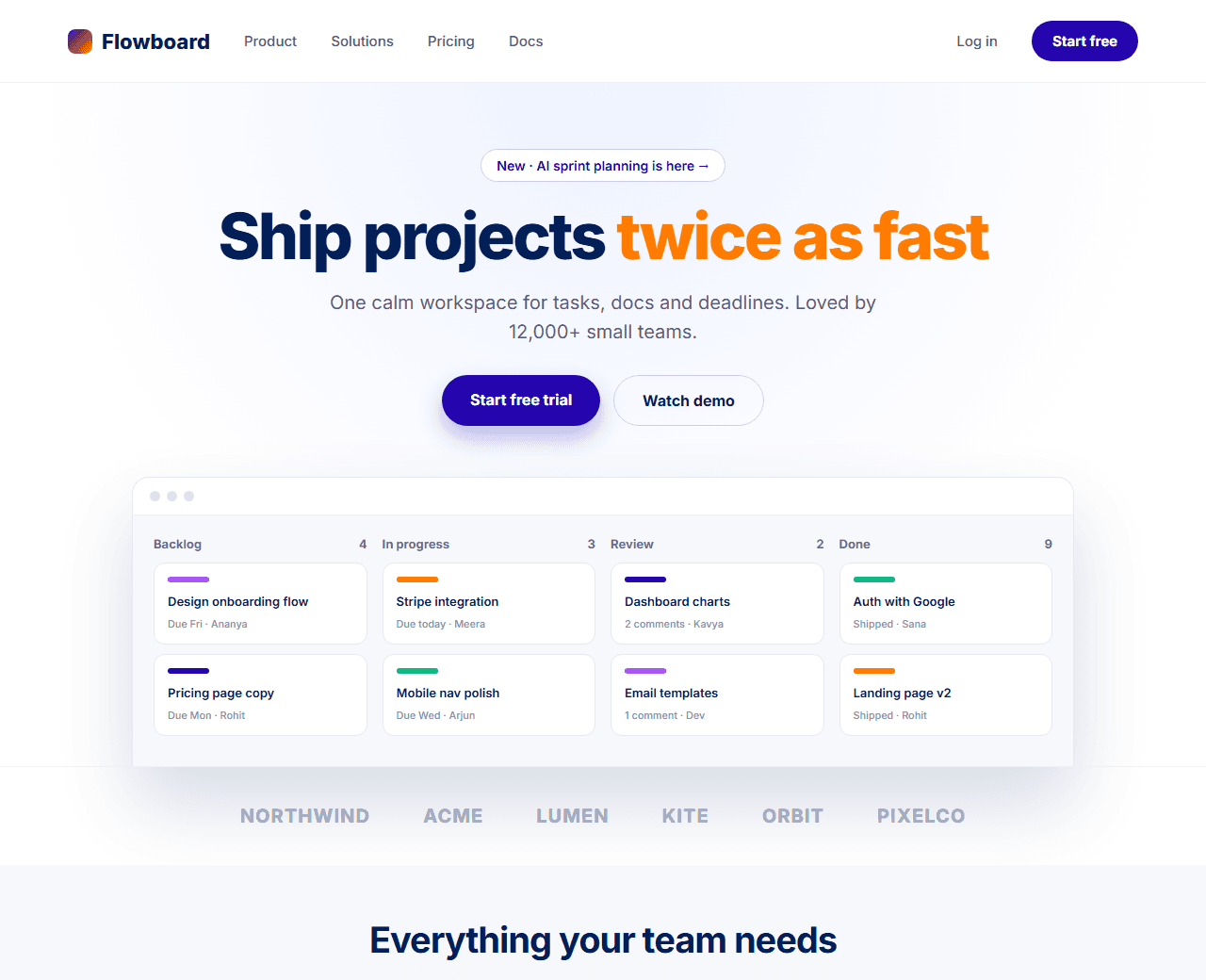
Example of the website this prompt builds. Your result will use your own name, text and images.
- Tech stack
- Next.js (App Router) + Tailwind CSS
- Colour palette
#ffffff#002057#2506ad#ff7b00
- What it builds
- Sticky navbar
- Hero with product screenshot
- Logo cloud
- Bento feature grid
- How it works (3 steps)
- Pricing (3 plans)
- Testimonials
- FAQ accordion
- CTA banner
- Footer
The prompt
Copy everything in the box. Text in quotes and the sample business details are meant to be replaced with your own.
Build a complete landing page for a B2B SaaS product called "Flowboard", a project-management tool for small teams.

Tech stack: Next.js (App Router) with Tailwind CSS. One page, split into components in a components/ folder. Server Components by default; add "use client" only where interactivity needs it.

Visual style: clean and modern on a white background. Navy (#002057) for headings, indigo (#2506ad) for primary buttons and links, orange (#ff7b00) as a sparing accent. Rounded 16px cards with a 1px light border, generous white space, a geometric sans-serif font such as Inter.

Sections, in order:
1. Sticky navbar: logo, 4 links, "Log in" text link and a "Start free" button. Collapses to a hamburger menu on mobile.
2. Hero: an announcement pill, a headline of at most 8 words, one supporting sentence, two buttons (primary "Start free trial", secondary "Watch demo"), and a large product screenshot placeholder with a soft shadow.
3. Logo cloud: "Trusted by teams at" with 6 greyscale company names.
4. Features: a bento grid with one large featured card and four smaller cards, each with an icon, title and one sentence.
5. How it works: three numbered steps in a row.
6. Pricing: three plans (Free, Pro, Team) in Indian rupees, the middle one highlighted as "Most popular", each with a feature checklist and button.
7. Testimonials: three customer quotes with name, role and company.
8. FAQ: six questions in an accessible accordion.
9. Final CTA banner with an email signup field.
10. Footer with four link columns and a copyright line.

Interactions: buttons lift slightly on hover; cards fade and slide up as they scroll into view.

Quality bar:
- Fully responsive: design mobile-first, then tablet (768px) and desktop (1200px).
- Accessible: semantic HTML landmarks, one h1, alt text on images, visible keyboard focus, colour contrast of at least 4.5:1 for body text.
- Fast: no heavy libraries, lazy-load images below the fold, system or two web fonts at most.
- Use placeholder images from a neutral source and realistic sample copy (no lorem ipsum).
- Respect prefers-reduced-motion for every animation.
- Keep the code clean and commented so I can edit it by hand.
How to use this prompt
- 1
Open an AI coding tool. Use any capable assistant: Claude, ChatGPT, Cursor, v0, Bolt, Gemini. Tools that can create files (Cursor, Claude Code, v0, Bolt) are the most convenient because they write the project for you.
- 2
Replace the sample details. Copy the prompt and change the business name, location, colours and any section you do not need. The more specific your details, the better the result.
- 3
Paste the prompt and generate. Send the whole prompt in one message. If the reply is cut off, say “continue from where you stopped”, or ask for one section at a time.
- 4
Run it on your computer. Create a project with “npx create-next-app@latest”, add the generated files, then run “npm run dev” and open http://localhost:3000.
- 5
Review and refine. Check it on a phone-width screen, fix anything that looks off by describing it in plain words, then use the follow-up prompts below to add features one at a time.
- 6
Replace placeholders and publish. Swap in your real text and images, then deploy. Vercel and Netlify both host this kind of site for free.
Follow-up prompts
Send these one at a time after the first version is working. Small, specific requests give much better results than one giant prompt.
Add a monthly/yearly toggle to the pricing section that updates the prices and shows 'Save 20%'.
Add a dark mode using CSS variables and a toggle in the navbar that remembers the choice.
Connect the email signup to a Server Action that validates the email with Zod and returns a success or error message.
Write SEO metadata (title, description, Open Graph) and FAQPage JSON-LD for this page.
Tips for a better result
- Replace 'Flowboard' and the one-line description with your own product before running the prompt.
- Generate one section at a time if the tool truncates long outputs.
- Want to hand-build a section instead? The Templates library has heroes, pricing tables, FAQs and more with full code.