Micro-SaaS Utility & Converter App
A single-purpose micro-SaaS converter web app with drag-and-drop file upload, live client-side progress simulation, and Pro upgrade modal.
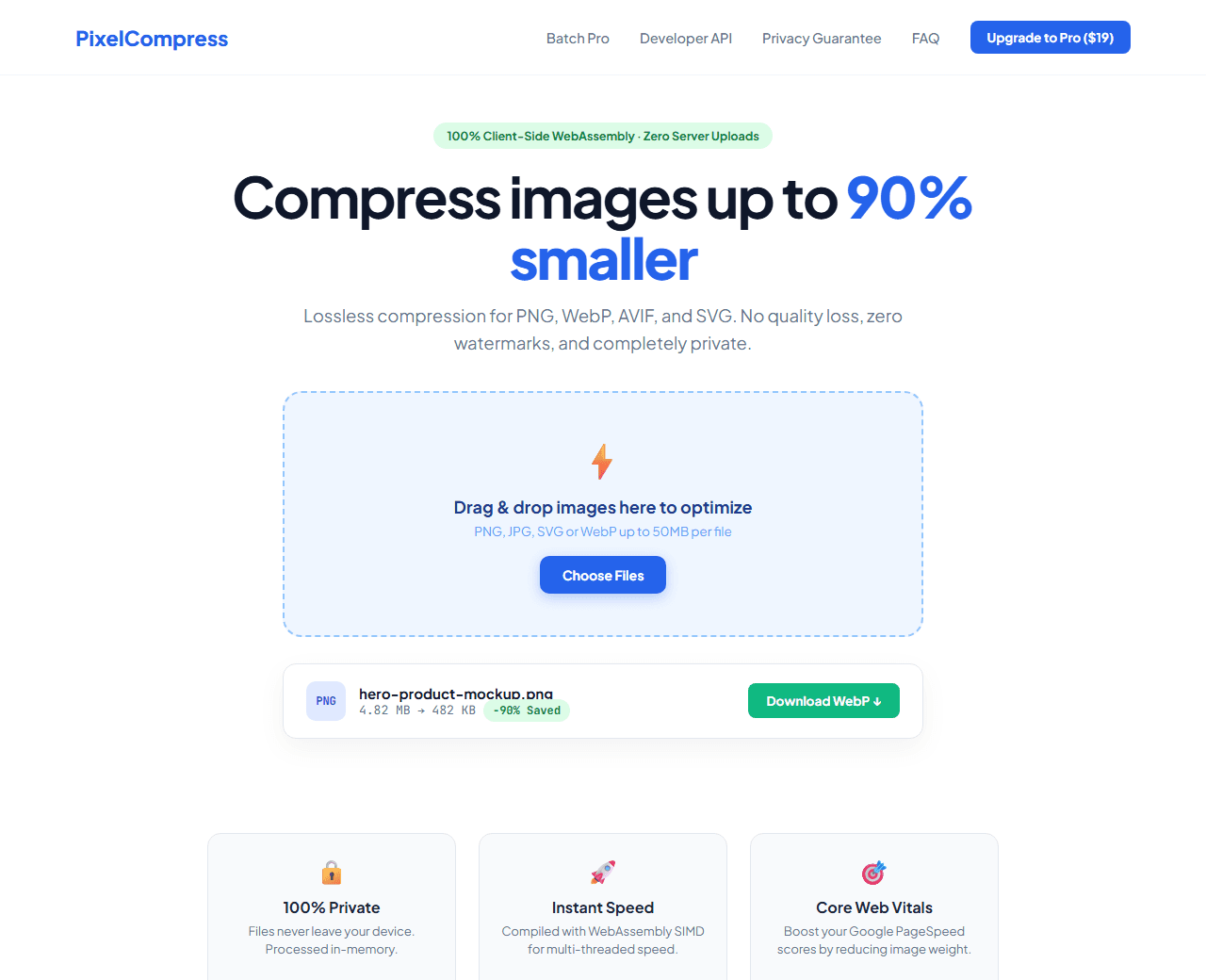
Example of the website this prompt builds. Your result will use your own name, text and images.
- Tech stack
- Next.js (App Router) + Tailwind CSS + WebAssembly
- Colour palette
#ffffff#1e293b#2563eb#10b981
- What it builds
- Clean utility navbar with '100% Free & Private' badge
- Hero with drag-and-drop file upload zone
- Conversion output options bar (Format, DPI, Quality slider)
- Live conversion state simulation with progress bar & Download button
- How it works: 100% client-side privacy with zero server uploads
- Feature comparison: Free vs Pro batch processing
- Pro lifetime pass checkout card ($19 one-time payment)
- Comprehensive SEO guide on file optimization and best practices
- FAQ covering supported file formats and maximum upload size
- Footer with privacy policy and related free web tools directory
The prompt
Copy everything in the box. Text in quotes and the sample business details are meant to be replaced with your own.
Build a high-converting, single-purpose micro-SaaS utility web application called "PixelCompress: Free Ultra-Fast Image & PDF Optimizer".

Tech stack: Next.js (App Router) with Tailwind CSS. High-performance client-side simulation.

Visual style: ultra-clean, functional utility tool. White background (#ffffff), dark slate headings (#1e293b), electric royal blue (#2563eb) for buttons, and vibrant emerald (#10b981) for savings metrics and success states.

Sections, in order:
1. Navbar: logo with lightning compress symbol, links ("API", "Batch Pro", "Privacy", "FAQ"), and "Upgrade to Pro" pill.
2. Hero: centered tool layout.
   - Headline: "Compress images up to 90% without quality loss".
   - Subtitle: "Fast, lossless optimization for PNG, JPEG, SVG and WebP. 100% private: files are processed right inside your browser using WebAssembly."
   - Interactive Drag & Drop Box: large dashed border dropzone with cloud upload icon, text "Drag & drop files here or browse", format badges ("PNG, JPG, SVG, WebP up to 50MB"), and a file input button.
   - Tool Options Bar: Target format dropdown (Keep Original, WebP, AVIF), Quality slider (80%), and "Optimize Now" button.
   - Live Result Card Simulation: displays file name (hero-banner.png), original size (4.8 MB), optimized size (480 KB), badge "90% Saved", and green "Download Optimized File" button.
3. Privacy Assurance: 3 security icons: 1) Zero server uploads, 2) No tracking cookies, 3) Works offline without internet.
4. Batch Processing Pro Card: comparison showing Free tier (up to 5 files at a time) vs Pro Lifetime tier (unlimited batch processing, ZIP download, CLI automation tool) for a single $19 payment.
5. Technical Comparison Table: shows how PixelCompress preserves EXIF metadata, ICC color profiles, and transparent alpha channels compared to generic compressors.
6. Step-by-Step SEO Guide: "How image compression speeds up Google Core Web Vitals (LCP & CLS)" with actionable advice for web developers.
7. FAQ: 6 questions about format conversions, browser compatibility, and commercial usage.
8. Footer: links to other micro-tools (SVG Optimizer, PDF Redactor, Favicon Generator) and copyright.

Quality bar:
- Fully responsive: design mobile-first, then tablet (768px) and desktop (1200px).
- Accessible: semantic HTML landmarks, one h1, alt text on images, visible keyboard focus, colour contrast of at least 4.5:1 for body text.
- Fast: no heavy libraries, lazy-load images below the fold, system or two web fonts at most.
- Use placeholder images from a neutral source and realistic sample copy (no lorem ipsum).
- Respect prefers-reduced-motion for every animation.
- Keep the code clean and commented so I can edit it by hand.
How to use this prompt
- 1
Open an AI coding tool. Use any capable assistant: Claude, ChatGPT, Cursor, v0, Bolt, Gemini. Tools that can create files (Cursor, Claude Code, v0, Bolt) are the most convenient because they write the project for you.
- 2
Replace the sample details. Copy the prompt and change the business name, location, colours and any section you do not need. The more specific your details, the better the result.
- 3
Paste the prompt and generate. Send the whole prompt in one message. If the reply is cut off, say “continue from where you stopped”, or ask for one section at a time.
- 4
Run it on your computer. Create a project with “npx create-next-app@latest”, add the generated files, then run “npm run dev” and open http://localhost:3000.
- 5
Review and refine. Check it on a phone-width screen, fix anything that looks off by describing it in plain words, then use the follow-up prompts below to add features one at a time.
- 6
Replace placeholders and publish. Swap in your real text and images, then deploy. Vercel and Netlify both host this kind of site for free.
Follow-up prompts
Send these one at a time after the first version is working. Small, specific requests give much better results than one giant prompt.
Implement real in-browser image compression using the HTML Canvas API and toBlob.
Add drag-and-drop file event handlers (dragover, drop) with visual highlight feedback.
Connect Pro checkout button to Stripe or LemonSqueezy payment link.
Add WebPage and SoftwareApplication JSON-LD schema.
Tips for a better result
- Emphasize browser-side processing; privacy-conscious developers love tools that don't transmit data to third-party servers.
- Include a sample before-and-after download file to prove compression quality instantly.
- Want to hand-build a section instead? The Templates library has heroes, pricing tables, FAQs and more with full code.